Posts

Configuring Push-buttons for Turnout Control in LCC (with BONUS section on Adapting JMRI for Feedback)

Image
So ALL the efforts, costs, brain damage and such to get LCC integrated into the layout is paying off in this one new step.  Let me explain. With LCC, each node is essentially its very own stand-alone microprocessor, capable of processing commands INDEPENDENTLY of a central PC or other server.  It just is connected to at the CAN bus, either looking for commands to respond (consumer) to or to issue them (producer).  SO... this addresses one of the goals of integrating LCC into my layout.  Sometimes I like to come down into the layout room and just run trains.  I don't have others with me, and for me, its a great way to unwind.  When I do that, I don't want to have to futz with turning on a PC and getting it going.  Ya, I know, some say it is not that big of a deal.  But if I am only going to be there for 5 or 15 minutes, seems like a hassle to mess with that.  I just want to through the power switch on, have the layout come to life, and run s...
Wiring To The Track

Image
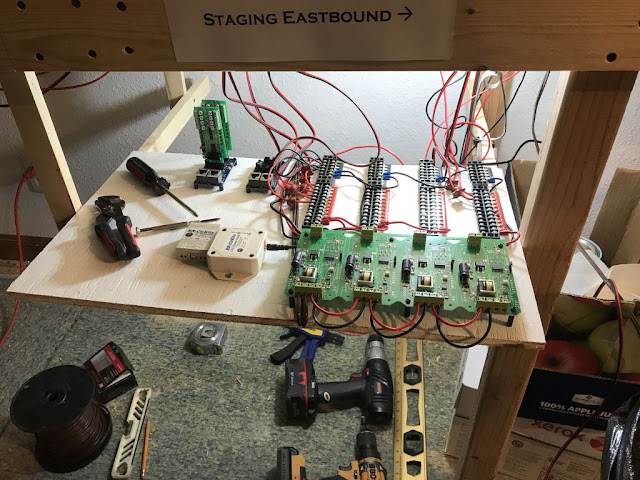
A few have asked how I wire out the blocks with the LCC system.  On my last layout expansion, I put all the electronics under the layout.  This resulted in a lot of hours working kinda sitting up leaning back while working overhead.  Never liked it and was undesirable.  On this buildout, I tried to minimize the amount of work under the layout and directed ALL my wiring to pull-out shelves at strategic locations.  Here is a pic of one of those shelves.  As you can see, it’s nothing fancy – just 1/2” plywood on a frame of 1x2 slides. The only thing I would do different is In the pic, I show the BOD-8’s plugged into the Tower-LCC; instead I would mount those separately with a 10-conductor cable jumper between. Power comes from the breakers in the lower right, up to the TBs in the upper right.  Then from the TBs, pairs of wire go out to the blocks.  One wire on the wire pair goes through CT (barely visible in the upper center of the photo...

KINKS! And Thomas...

Image
Quick update on the GNW.  Work continues and making good progress.  Except for trackwork.  I had installed all the track with every other piece of flex track soldered, and a small (1/16"to 1/8") gap between the non-soldered tracks for expansion.  I figured this would be more than enough to accommodate thermal expansion as well as the swell and shrink of the benchwork.  I was wrong! What was a straight staging yard SO had to go through essentially all the trackwork and recut new gaps.  Here is a pic that shows how much the benchwork had shrunk over the last few months as the wood dried out.  Keep in mind this is in addition to the gap that was there. Amazing amount of shrinkage, especially considering this was for at most 10', probably closer to 6' of track. Took care of maybe 20 or so kinks and all is well now. With the main loop running, the railroad is seeing more visitors.  Of course, they would like to run a train.  So with...

Mainline is DONE! Controls coming together!

Image
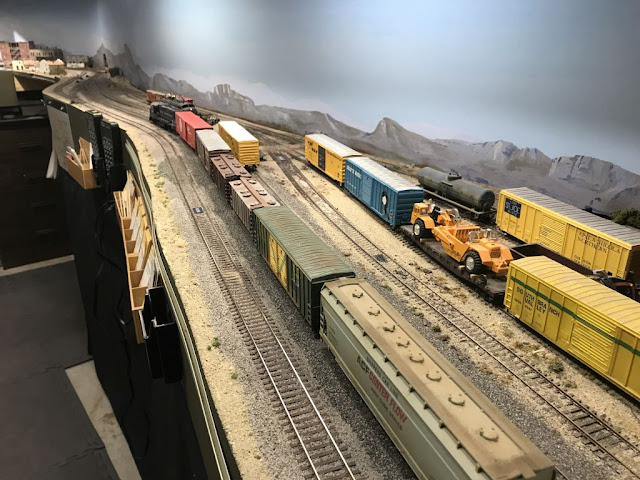
Since the last few posts were focused on LCC, thought it would be good to do a show-and-tell on how the layout itself is coming along.  To do this, let's follow along heading eastbound out of Valley Gate. Valley Gate remains pretty much the same.  With the Armstrong Yard at Pinion, Valley Gate will be relegated to building only local trains. The lead on the east end of Valley Gate now includes a cross-over, creatively called East Valley Gate.  No passenger station here - it was relocated to Pinion.  On the upper shelf, we can see the branch to Warm Springs.  Functionally the layout is pretty much the same as it was - a shorter main with a longer branch.  Just adding some yeast and stretching the runs! Looking to the east of Valley Gate East, we see Coyote siding.  Upper shelf we see the branch rising up.  The branch has the stiffest grade on the layout - 3.5%.  More than what I wanted to end up with, but very doable.   ...

More on LCC - Configuring a Turnout

Image
The blog post on configuring a node raised some eyebrows since the nodes come essentially already configured for detection.  I had to configure a bunch of Tortoise stall motor drive outputs, so presenting a step-by-step for configuring those kinds of outputs. For this post, I am using an RR-Cirkits Tower-LCC board with an RR-Cirkits SMD-8 stall motor driver board attached.  As before, everything is done via JMRI Panel Pro.   Open Panel Pro and then the OpenLCB config tool: As before, open the node and click on the Config Dialog: You'll see the info upload from the node.  This is a tower LCC with several points already configured.  We will do point 11: Click on tab Line 11 and, just as before, name the point.  Note that it changes to an orange background to show it was not changed on the node: Click on "Write" and it's in! Now scroll down to the Producer/Consumer options.  The whole discussion about producers and co...